Introduction
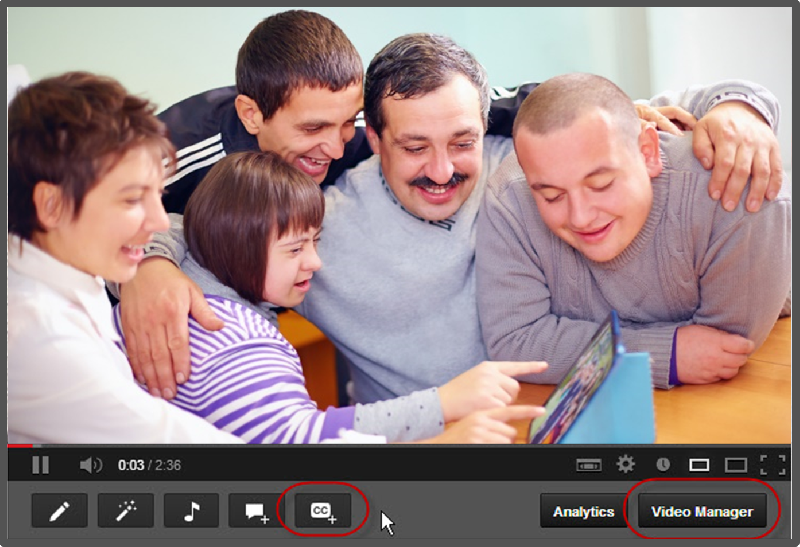
‘A group of happy people with disability having fun watching a video on a tablet’
Creating good quality accessible media can greatly increase the numbers of people accessing and effectively engaging with your information and can help improve SEO (as the search engines can index the transcript).
In this module you will gain an understanding of some of the key challenges faced by people with disabilities when accessing video media and learn how to create an accessible video for YouTube that is compliant with W3C guidelines and draws upon best practice.
Process
1. Gain an awareness: To help you understand issues faced by people with a hearing or visual impairment try the following:
- Experience watching a video without the ability to hear, turn off the volume whilst watching a video. Some videos are fairly easy to follow by watching the visual display. Others, like news programs can make little sense without audio.
- Listen to an instruction video without viewing the screen to help determine how accessible it might be to a person who is blind.
- Read: Key challenges (pdf).
2. Understand the key benefits for creating accessible media:
- Read: Key benefits (pdf)
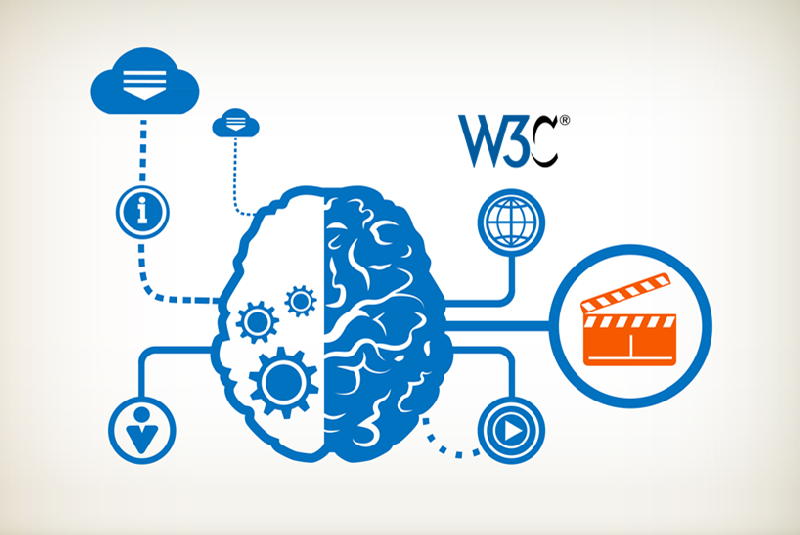
3. Gain an awareness of W3C guidelines relating to accessible media:
- For a summary of the key points read: What you need to do to make video and audio more accessible and comply with W3C
4. Get your instructional video:
Option 1: Create a new instructional video or animation by storyboarding the scenes and audio/voiceovers first (ensuring the audio components are suitable for those with a visual impairment). Create the video or animation and save it in a format suitable for You Tube.
Resources: Video storyboard template, for animations there is a link to Powtoon and GoAnimate.
Read: Tips for creating instructional videos
Option 2: Use an existing instructional video or animation and review the audio to make sure it is suitable for a person with a visual impairment or someone who is blind.
5. Upload your video to YouTube
7. Create the captions for your video
- Read: Best practice when creating a transcript
- Create your captions using the tools in You Tube
8. Test your video with someone who has a visual impairment and someone who has a hearing impairment. Make any adjustments based on their feedback.
Learning Objectives
- list or describe at least 5 challenges faced by people with a disability when accessing video media.
- list or describe at least 5 key benefits of creating accessible video media.
- differentiate between open and closed caption videos and understand why subtitling is different to closed captions.
- describe or list the 2 essential components you should ensure are included in your video media in order to comply with W3C guidelines.
- list 4 best practice descriptions you need to include in a captioned transcript and apply these descriptions to your video where appropriate.
- create an accessible video with closed captions on YouTube.
- Describe the key challenges faced by people with visual, auditory, physical and cognitive disabilities when interacting with media.
- Describe the key benefits of making video and audio media resources accessible
- Explain the difference between open and closed captions and understand the advantages and disadvantages of each approach.
- Explain key responsibilities relating to complying with W3C guidelines for producing accessible video media.
- Plan how you will create an accessible instructional video.
- Write an audio transcript using best practice for an instructional video
- Create an open or closed captioned video on You Tube for an instructional video
- When planning a video or animation you can implement good practice relating to the content of the audio and advise others on how best to say things in order to make the transcript process easier.
- You can create accessible videos on You Tube for your organisation.
- You can promote the benefits of creating accessible media in your organisation and describe the process to others.
Conclusion
Captioning instructional video creates accessible content for individuals who are deaf or hearing impaired. Captions are also important for anyone working or viewing the video in a noisy environment or without speakers. Captions add another dimension to video content, making a richer learning experience for trainees who have specific neurological processing problems, non-native speakers and adults working toward basic literacy.
Final Tip: Users who want to access closed captions need to understand how to turn them on from media players so where possible include instructions for users in accessible formats.
Other
- Camtasia (Free trial for 14 days) Camtasia lets you record a video of what’s on your computer screen. Use it to make lessons, tutorials, or product demos. Turn your screen recordings into compelling videos with Camtasia’s video editing tools, animations,
- GoAnimate Animated videos tool (Free trial for 14 days) https://goanimate.com
- Powtoon Create animated videos and presentation https://www.powtoon.com
- Audacity® Audacity® is free, open source, cross-platform software for recording and editing sounds. http://www.audacityteam.org/
- Dragon Speech Recognition Software Dragon Professional enables fast, accurate dictation and transcription with the right level of customization. http://www.nuance.com/dragon/index.htm
- Media Access Generator (MAGpie) MAGpie (Media Access Generator) is the original free caption- and audio-description authoring tool for making multimedia accessible to persons with sensory disabilities http://ncam.wgbh.org/invent_build/web_multimedia/tools
- Supported YouTube file formats Make sure that you’re using one of the following formats when you create your video for YouTube: .MOV .MPEG4 .AVI .WMV .MPEGPS .FLV 3GPP WebM